How to Check SASSA Balance on Your Phone (2026 Guide)
Published 07 October 2026
How to Check SASSA Balance on Your Phone (2026)
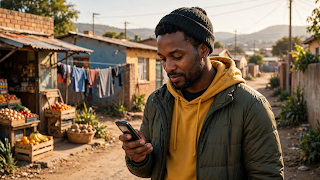
You do not need a computer or an internet café to check your SASSA grant. Your phone is enough — whether it is a smartphone or a basic phone. This guide shows you the three main ways to check your SASSA balance and status on your phone: WhatsApp, USSD code, and the online status check. Pick whichever suits your phone.
Method 1: Check via WhatsApp (Best for Smartphones)
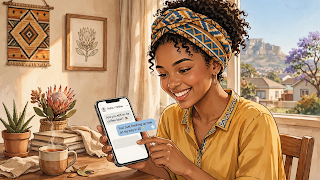
WhatsApp is the easiest method if you have a smartphone with data or Wi-Fi.
- Save the official SASSA WhatsApp number — find the current number on the official site srd.sassa.gov.za (numbers can change, so always check there first).
- Open WhatsApp and start a chat with that number.
- Send the word the instructions ask for (usually something like "status" — follow the prompts you receive).
- Follow the menu: enter your ID number and the phone number linked to your grant when asked.
- You will receive your current grant status, including whether it is approved and any payment information.
Tips: Use the same phone number you registered with SASSA. If you changed your number, update it first (see our guide on updating your phone number) or WhatsApp verification may fail.
Method 2: Check via USSD Code (Works on Any Phone)
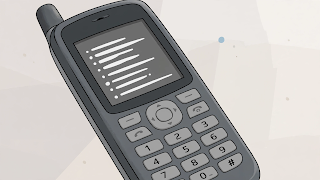
USSD works on any phone — even an old basic phone with no internet and no airtime balance needed in most cases. You dial a code and follow the menu on your screen.
- Open your phone's dialler (as if making a call).
- Dial the official SASSA USSD code — the current code is published on srd.sassa.gov.za, so confirm it there before dialling.
- Press call/send. A menu will appear on your screen.
- Follow the prompts: enter your ID number when asked.
- Your status and balance information will be displayed.
Tips: USSD sessions time out quickly — have your ID number ready before you dial. If the session drops, simply dial again. USSD is free or very cheap on most networks, but check with your network if you are unsure.
Method 3: Online Status Check (Smartphone or Computer)
If you have internet access, the official website gives the most detail.
- On your phone's browser, go to srd.sassa.gov.za.
- Find the status check section.
- Enter your South African ID number.
- Enter the cellphone number you used when you applied.
- Submit — your status for each month will be shown: approved, pending, or declined, plus payment dates where available.
Tip: Bookmark the page on your phone so you can check quickly each month. Never enter your ID number on any site other than the official SASSA website — scam sites steal personal details.
Which Method Should You Use?
| Your situation | Best method |
|---|---|
| Smartphone with WhatsApp | |
| Basic phone, no internet | USSD code |
| You want full monthly detail | Online status check |
| Changed your phone number | Online first (to update), then WhatsApp/USSD |
What the Results Mean
- Approved — you qualify for that month. Payment follows according to SASSA's batch schedule.
- Approved but no payment date yet — normal. Payment dates are loaded in batches; check again in a few days.
- Pending — still being verified. Wait; do not reapply.
- Declined — a reason will be shown. Read our guide on [why SASSA grants get declined and how to fix it](#).
Stay Safe: Avoid Scams
- SASSA will never ask you to pay a fee to release your grant.
- Only use srd.sassa.gov.za and official SASSA channels. Ignore SMS messages with links from unknown numbers claiming your grant is ready.
- Never share your ID number, PIN or banking details with strangers on WhatsApp or Facebook.
Frequently Asked Questions
1. Can I check my SASSA balance without airtime?
Yes — the USSD method generally works even with no airtime, and WhatsApp works on free Wi-Fi. The online check needs internet access (data or Wi-Fi).
2. What is the SASSA WhatsApp number?
SASSA publishes its official WhatsApp number on srd.sassa.gov.za. We do not list it here because numbers change — always get it from the official site to avoid scammers using fake numbers.
3. The USSD code is not working. What should I do?
First confirm you are dialling the current code from the official site. Make sure you have network signal. If it still fails, try the WhatsApp or online method instead, or try again later — the system is sometimes busy at month-end.
4. Can I check someone else's SASSA status on my phone?
You need that person's ID number and their registered phone number for verification. Do not check or share other people's grant details without their permission.
5. How often should I check my balance?
Once a month is enough for most people — check after the usual payment window if your money has not arrived. Checking daily will not make the payment come faster.
6. My status says approved but there is no money. What now?
First confirm your banking details are correct on the system. Payments are made in batches, so allow a few working days after approval. If the money still does not arrive, check that your bank account is active and in your name.
Conclusion
Checking your SASSA balance on your phone takes less than two minutes once you know how: WhatsApp for smartphones, USSD for any phone, and the online status check for full detail. Use only official channels, keep your phone number updated, and never pay anyone who promises to "release" your grant.
Disclaimer: Payment dates and amounts change — always confirm on the official site srd.sassa.gov.za.